How to Make a QR Code with a Logo in the Middle (Without Broken Scans)
Putting a brand logo in the center of a QR code turns a generic barcode into a recognizable, trusted marketing asset. However, if done incorrectly, the logo can cover vital data modules and make the QR code unscannable on older smartphones.

- The centre is the only safe logo position — finder patterns in the corners must stay untouched.
- Keep the logo between 20% and 25% of the code's width and always add a clean white halo around it.
- Error correction level H rebuilds up to 30% of covered data; set it before exporting, not after.
- Test in daylight and low light, on an older phone, before anything goes to print.

Why You Can Put a Logo in the Center (Reed-Solomon Error Correction)
QR codes have built-in redundancy called Reed-Solomon Error Correction. This mathematical algorithm reconstructs missing or obscured pixels. There are four error correction levels:
- Level L (Low): Recovers up to 7% of damaged or covered data. (Never use with logos).
- Level M (Medium): Recovers up to 15% of data. (Suitable for tiny monochromatic icons).
- Level Q (Quartile): Recovers up to 25% of data. (Recommended for logos).
- Level H (High): Recovers up to 30% of data. (Best for larger logos or outdoor print signs).

Rule 1: Keep Central Logo Size Between 20% and 25%
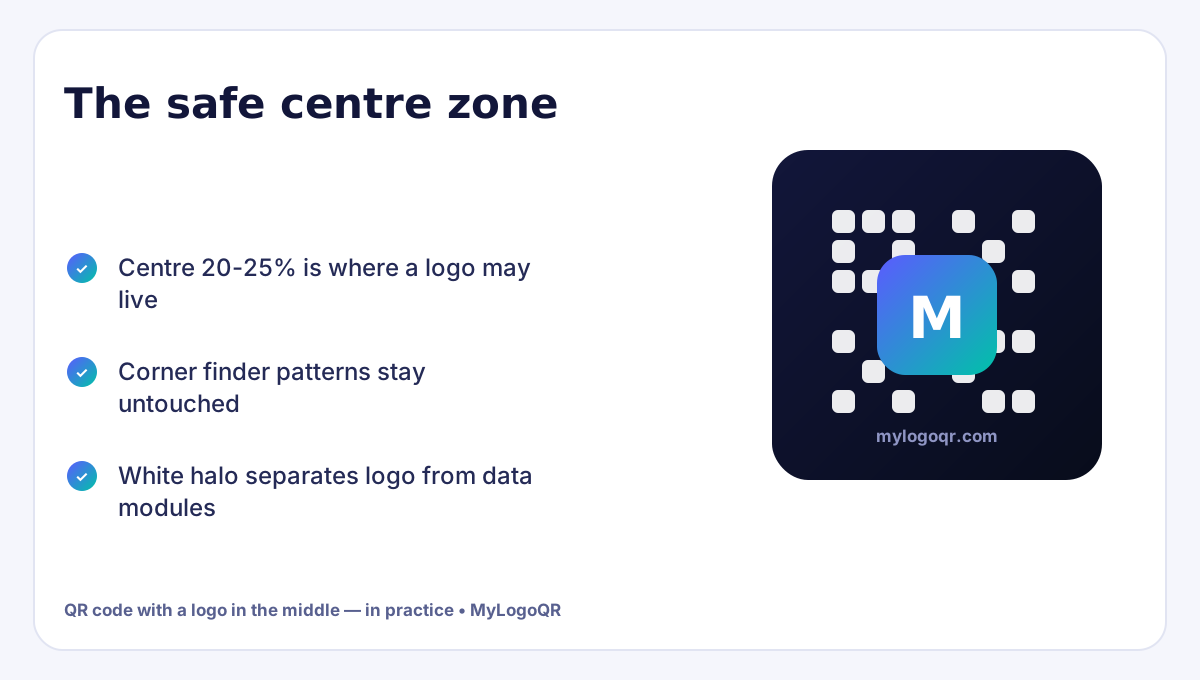
A logo covering 20% to 25% of the QR code's total area is the sweet spot. It provides high brand recognition while leaving 75%+ of data modules intact for instant camera reading.

Rule 2: Add a Clean White Border Around the Logo
Never let the edges of your logo blend directly into the dark data modules. Adding a 4px to 6px circular or square white padding creates contrast that prevents scanner confusion.

Rule 3: Test Scan Under Daylight and Low Light
Before sending your design to commercial printing, scan the preview on at least two different smartphones: once under direct light and once in a dim room.
Related Technical Guides

Why the middle is the only safe place for a logo
A QR code's corners are its steering system: the three large finder patterns tell the scanner where the code begins, ends and which way up it is. Cover a corner and the code is blind. The centre, by contrast, is protected by design — error correction data is spread through the pattern precisely so that a missing middle can be rebuilt mathematically. That is why every professional logo code puts the brand mark in the centre and leaves the corners untouched. When you build yours in the free QR code generator with logo, the logo is placed centrally on a clean background patch, and error correction is doing the invisible work that keeps the code honest.

Troubleshooting a logo code that will not scan
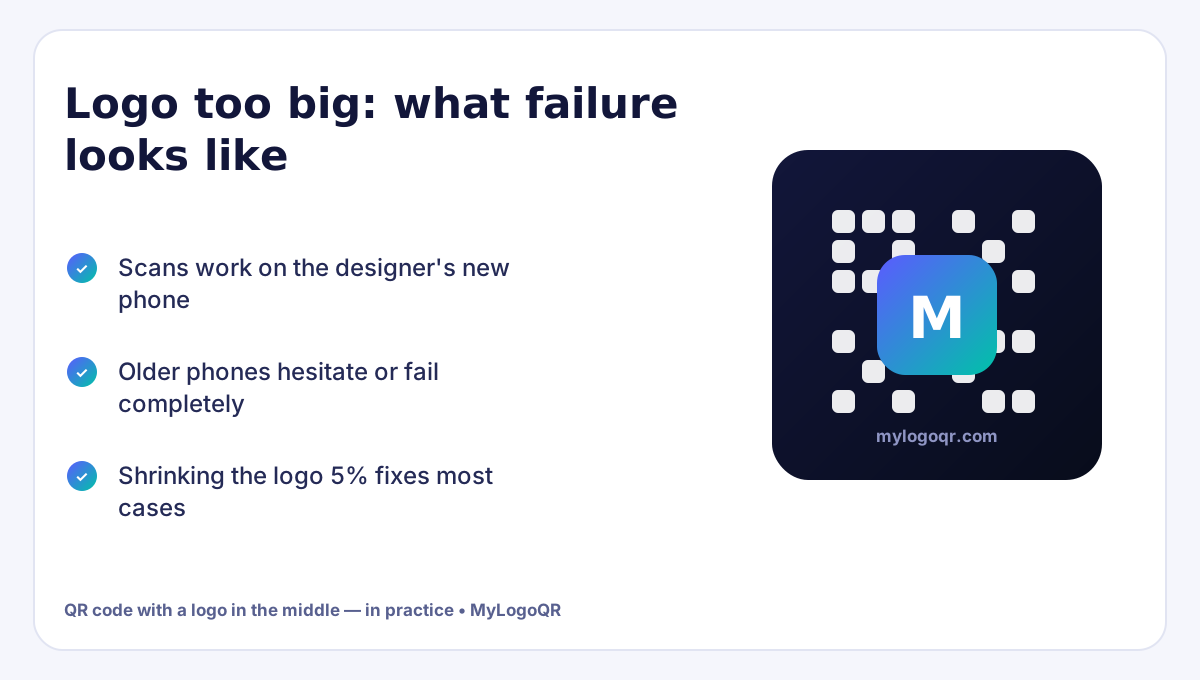
Work through the failures in order. First, shrink the logo: above roughly 30% of the code's width, even level H correction runs out of spare data. Second, raise the error correction to H and regenerate — codes made at L or M have almost no budget for a logo. Third, check contrast: a pale logo is fine, but pale modules on a light background are not, so keep the pattern itself dark. Fourth, give the logo a border or background pad so its edges do not merge with the modules around it. Finally, test the exported file at its real print size, not zoomed on a monitor — most stubborn failures turn out to be size and material problems, not design ones. The deeper design rules live in our guide to custom QR codes with logos and frames.

Logo file preparation: the two-minute version
Start with the cleanest version of your mark: a PNG or SVG with a transparent or solid light background, exported at least 500 pixels wide so it stays crisp inside a 1000-pixel code. Simplify busy logos first — thin lines, tiny taglines and photographic detail all dissolve at code scale, so use the icon or monogram version of the brand, not the full lockup. If your logo is very wide, stack or crop it toward a squarer shape; a wide banner forced into a square centre ends up too small to recognise. Match the code's colours to the brand palette after the logo is placed, not before, and always judge the result at final size: what reads clearly on a designer's monitor may vanish on a coffee-cup sleeve, which is the only review that counts.
The bottom line: a centred logo works because the format was engineered for it — error correction rebuilds what the logo covers. Respect the three numbers (logo near 20–25%, correction at H, contrast kept strong), prepare a clean square version of your mark, and a logo code becomes the most reliable piece of branding you own.

Choosing the right logo file for the centre of a QR code
Not every logo survives being shrunk into the middle of a QR code. Wide wordmarks collapse into an unreadable smear at 20% width, while compact marks — an icon, a monogram, initials in a badge — stay recognisable at small sizes. If your full logo is horizontal, extract its icon element for QR use and keep the full lockup for letterheads; most strong brands already maintain exactly such a compact version for social avatars and favicons, and that file is the one to use. Prepare it as a PNG with a transparent or white background, cropped tight to the artwork with no extra padding, so the generator's sizing is honest.
Contrast inside the logo matters less than people fear: the halo of white space around it separates the artwork from the data modules, so a colourful logo is fine. What does matter is fine detail — thin lines and tiny text inside the logo will blur in print. Simplify first, and the QR code with a logo in the middle will look deliberate instead of squeezed.


The two-minute workflow, start to finish
Making a QR code with a logo in the middle takes less time than the coffee beside your keyboard when the order of operations is right. The sequence matters because error correction and logo size interact: set them in the wrong order and the generator quietly rebuilds the code around new assumptions.
- Open the QR code generator with logo and enter your destination link
- Set error correction to level H before adding any artwork
- Upload the compact logo file and scale it to 20-25% of the code width
- Choose brand colours that stay darker than the background
- Download the SVG for print or PNG for screens — then test-scan both an iPhone and an Android
If the scan hesitates, shrink the logo by a few percent before touching anything else. In nine cases out of ten, size — not colour, not shape — is the variable that was slightly over the line.
Frequently asked questions
How large can the centre logo be before scanning fails?
Keep it near 20–25% of the code's width. Around 30% is the practical ceiling even with error correction H, and older phones will fail sooner.
Which error correction level is best for a logo QR code?
Level H, which can rebuild up to 30% of the pattern. Level Q (25%) is the minimum sensible choice for a centred logo.
Should the logo have a background behind it?
Yes. A clean white or light pad behind the logo separates it from the modules and noticeably improves first-time scan success.
Why does my QR code with a logo stop scanning when the logo gets bigger?
The logo covers data modules. Error correction can rebuild a limited share (up to about 30% at level H); beyond that, too much information is missing and scanners fail. Shrink the logo to 20-25% of the code width.
Can I put a logo anywhere else in a QR code besides the middle?
No. The corners hold the finder and alignment patterns the scanner uses to locate and orient the code. Covering them breaks scanning immediately; the centre is the only safe zone.
Recommended Logo & Design Deep-Dives:
- Need a pre-calibrated center logo generator? Try QR Code Generator with Logo in Middle.
- Remove white boxes behind your code: Transparent PNG QR Code Generator.
- Best free tools review: Best Free QR Code Generator with Logo (No Sign-Up).
- Looking for alternatives? See Best QRCodeMonkey Alternative with Free Vector SVG.
- Designing inside Canva? Check How to Import Vector QR Codes into Canva.
- Add custom borders and frames: Custom QR Codes with Logos & Frames Guide.
- Fun novelty branding: How to Create a QR Code with the Chrome Dinosaur Logo.