Wi-Fi QR Code Generator with Logo: Password-Free Wireless Login Guide
Tired of spelling out complicated Wi-Fi passwords to customers and guests? A Wi-Fi QR code encodes your network SSID, security encryption, and passkey directly into a barcode.

- A Wi-Fi QR code encodes the SSID, password and security type — one scan joins the network, no typing.
- Match the security setting (WPA/WPA2, WPA3 or nopass) to the router exactly, or phones will refuse the join.
- Add your logo and brand colours so guests trust the code is the venue's, not a stranger's sticker.
- Regenerate and reprint the code the day the password changes — old codes fail silently.
How Wi-Fi QR Codes Work Natively on iOS and Android
Both Apple iOS (Camera app) and Android (Google Lens / Native Camera) support the standard WIFI:T:WPA;S:NetworkName;P:Password;; protocol. When a guest points their phone camera at the code, a notification banner appears saying: 'Join [Network Name] Wi-Fi Network?' Tapping the prompt connects them automatically in less than two seconds.

Benefits of Wi-Fi QR Codes for Businesses
- No More Typo Complaints: Complex passwords with uppercase, lowercase, numbers, and symbols are entered flawlessly without human error.
- Privacy Protection: Guests never need to see or write down your router's master password on scratch paper.
- Enhanced Hospitality Branding: Display an elegant acrylic table tent with your cafe or restaurant logo in the center of the QR code.

Security Best Practices for Public Venues
Never share your internal administrative network or POS payment terminal Wi-Fi on a public QR code. Always create a dedicated 'Guest Wi-Fi' network with client isolation enabled on your router before printing QR table cards.
Related Technical Guides

The Wi-Fi QR format, explained simply
A Wi-Fi QR code is not a link — it is a small, standardised text recipe that phones already understand. The recipe reads WIFI:T:WPA;S:YourNetwork;P:YourPassword;; where T is the security type (WPA for almost every modern router), S is the network name (SSID) and P is the password. When a guest scans it, the phone recognises the format and offers a one-tap "Join" prompt — no typing, no wrong passwords, no asking staff. The free Wi-Fi QR code generator builds this string for you, including the tricky cases: open networks with no password simply omit the P field, and hidden networks can be flagged so phones search for them properly.
Where to place Wi-Fi codes so guests actually use them
Placement decides whether the code saves your staff time or just decorates a wall. In cafes and restaurants, the table itself wins: a small tent card or a code printed beside the menu means guests connect before they order — and the same table card can carry your restaurant menu QR code on the back. Rentals and Airbnbs do best with the code inside the welcome folder and again on the fridge. Offices should put a guest-network code in the meeting room, not the lobby, so visitors connect where they actually sit.
- Use a separate guest network. The code should hand out the guest password, never your private or point-of-sale network.
- Label it plainly. "SCAN FOR WI-FI" under the code, in your brand style, removes all guesswork for less technical guests.
- Mind the finish. Glossy lamination reflects light and slows scanning; matte cards and a clear quiet zone around the code scan fastest.
- Reprint when the password rotates. A static code holds the password it was made with — when you change the password, the old code stops working, which is a feature, not a bug.

Common Wi-Fi QR code mistakes
The most serious mistake is generosity with the wrong network: printing a code for your main or point-of-sale network hands every guest a permanent key to it. Always create the code against a separate guest network — most routers enable one in minutes. The second mistake is forgetting that a static code freezes the password in print; when you rotate the password for hygiene, every framed code in the building silently dies, so reprint day and password-change day must be the same day. Third, hosts hide the code — behind the counter, inside a menu nobody opens — and then wonder why guests still ask staff for the password; if the code's job is to be scanned, it belongs where guests sit. Fourth, check the security type: a code built as "no password" for a WPA network (or the reverse) will fail politely and confusingly. One test scan with your own phone, joined and browsing, catches all four mistakes in under a minute.

Quick start checklist
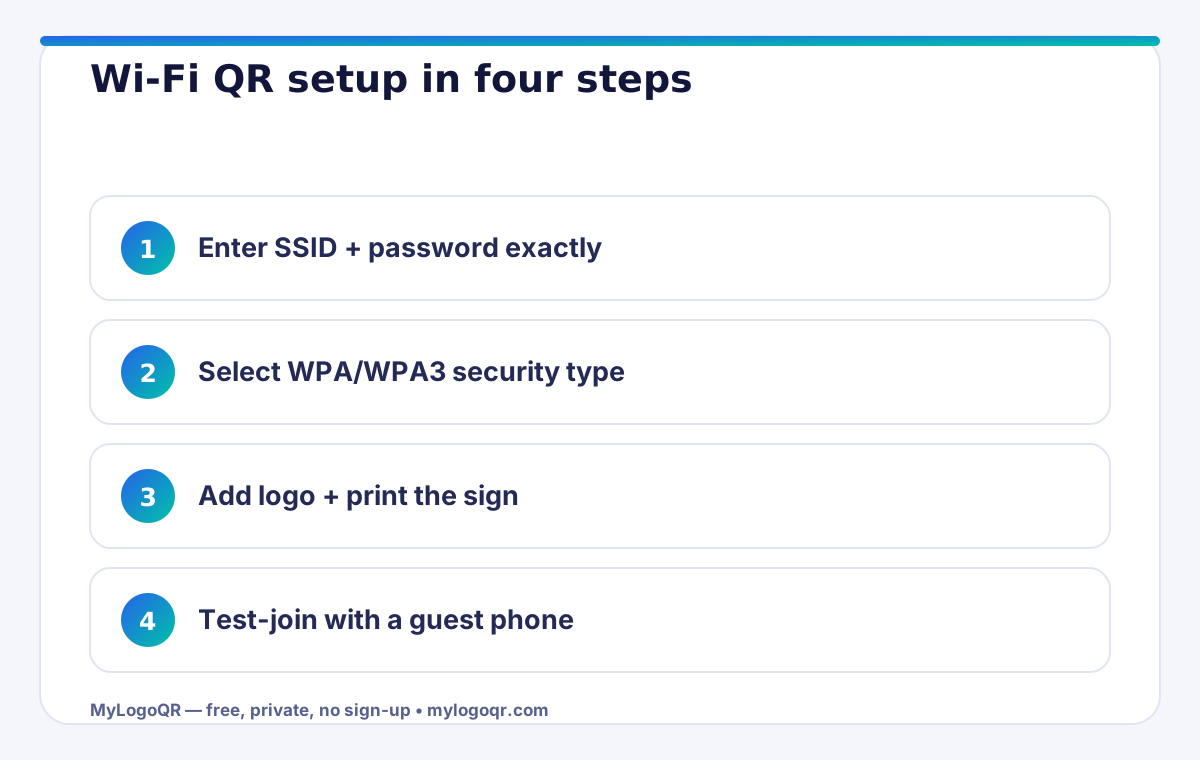
- Create or confirm a guest network first — the printed code should never hand out your private or till network.
- Enter the SSID exactly as it broadcasts, capitals included, and select the real security type, usually WPA.
- Add your logo and a plain label such as SCAN FOR WI-FI so guests understand the code without asking.
- Download, print one copy, and join the network from it with your own phone before framing or laminating anything.
- Put password changes and code reprints on the same calendar day — the old code dies the moment the password does.
Router settings to check before generating the code
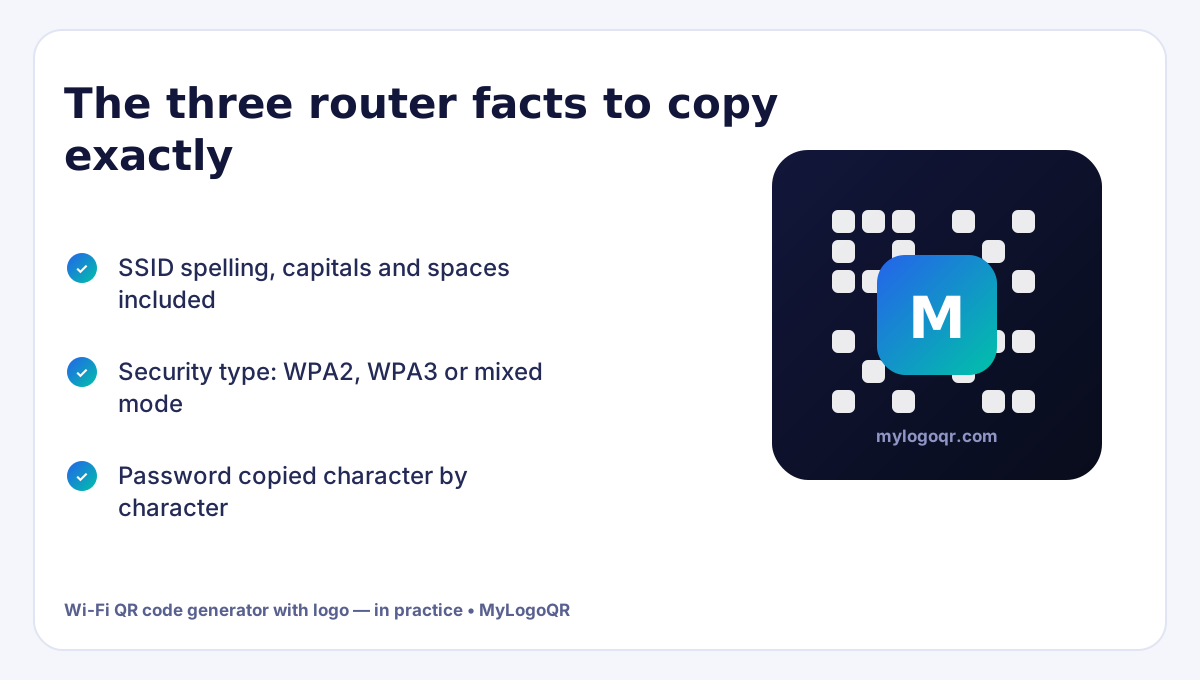
Most Wi-Fi QR failures are born in the router, not the generator. Before opening the Wi-Fi QR code generator with logo, confirm three things in the router's admin page: the exact SSID spelling (spaces and capitals are part of the name), the security mode the network actually runs — WPA2, WPA3 or the mixed transition mode — and whether the network is hidden, because a hidden SSID must be declared in the code or phones will not look for it. Copy the password character by character from the same screen rather than from memory; a single wrong character produces a code that scans beautifully and joins nothing, which is the most confusing failure of all.
If the router offers a dedicated guest network, this is its moment: generate the public code for the guest SSID and keep the main network's credentials off paper entirely.
Designing the Wi-Fi sign guests actually notice
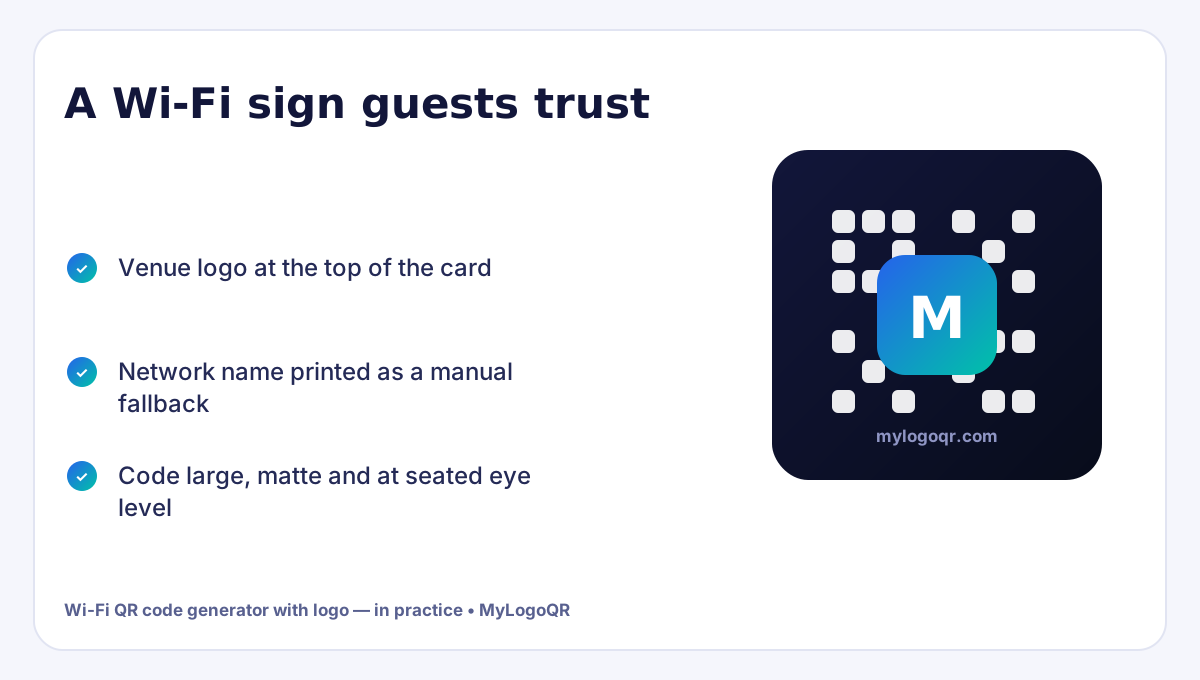
The sign is a hospitality object, so design it like one. A framed table card in a café, a small plaque by the till, or a page in the rental's welcome book all outperform a photocopied A4 sheet taped to a wall. Your logo at the top, one warm line — “Join our Wi-Fi” — the network name written out for anyone whose camera struggles, and the branded code large in the centre: that is the whole design. Branding is not vanity here; a code carrying the venue's logo reads as official, while a bare black square on a random sticker reads as a risk, and cautious guests are right to hesitate.
- Logo version used, matching the venue's other signage
- SSID spelled out in text under the code as a manual fallback
- Code at least 4 cm wide on table cards, more on wall signs
- One test join performed from a phone that has never joined before
Frequently asked questions
Will a Wi-Fi QR code work on older iPhones?
iPhones running iOS 11 or later scan Wi-Fi codes natively in the Camera app, which covers the overwhelming majority of devices still in use. Very old devices can type the password shown next to the code as a fallback.
Is it safe to print my Wi-Fi password in a QR code?
Anyone who scans the code can read the password inside it, so treat the printed code like the password itself: share the guest network, place codes in guest areas, and rotate the guest password when you reprint.
What if my network name has spaces or special characters?
That is fine — the generator escapes the SSID and password correctly for the standard format. Just double-check by scanning the preview with your own phone before printing.
Why does my Wi-Fi QR code scan but not connect?
Almost always a mismatch: the password changed after printing, the security type selected differs from the router's, or the SSID in the code is not character-exact. Regenerate the code from the router's current settings.
Does a Wi-Fi QR code work for both iPhone and Android?
Yes. Both platforms read the standard Wi-Fi QR format and offer to join the network directly from the camera scan.