QR Code with Logo Not Scanning? 9 Fixes That Work (In the Right Order)
A QR code with a logo that will not scan is almost never a mystery — it is one of nine physical causes, and they can be checked in a strict order that finds the culprit in minutes. Work through this list from the top: each fix is cheaper than the one after it, and the first three solve most cases.

- Logo over ~25% of the code or error correction below Q causes most logo scan failures.
- Dark-on-light contrast and a clear 4-module quiet zone are non-negotiable.
- Print failures come from blur, small size and glossy or curved surfaces.
- Always verify the fix on an old, cheap phone — not your flagship.

Fix 1-3: logo size, error correction and the covered centre
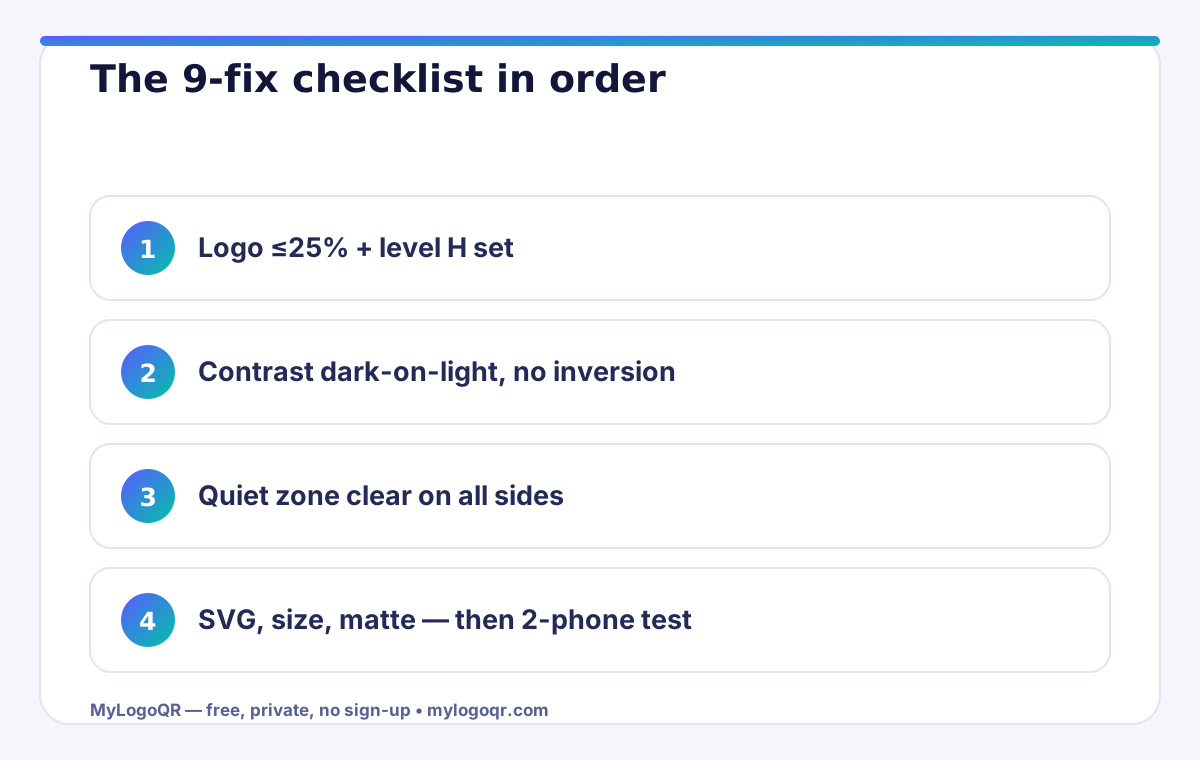
The most common cause is a logo that simply covers too much data. Error correction can rebuild a limited share of the pattern — about 30% at level H, 25% at Q, 15% at M and only 7% at L. If the code was generated at level L or M and then given a generous centre logo, the maths never worked. Regenerate the code at level H, shrink the logo to 20-25% of the code's width, and add a clean white halo around it so the artwork does not touch the data modules.
Test after this single change before touching anything else. In practice, the majority of 'my QR code with logo is not scanning' reports end here, because size and correction level are the two variables the logo actually interacts with. Everything below assumes these two are already right.

Fix 4-6: contrast, inverted colours and the quiet zone
Scanners read luminance difference, not colour. A mid-blue logo code on a light-grey background can look rich to your eye and nearly invisible to a camera in café lighting. Check that the pattern is clearly darker than the background at every point — gradients included. Inverted codes (light pattern on a dark background) remain unreliable on many built-in Android scanners, however modern they look; converting back to dark-on-light fixes a stubborn share of failures instantly.
Then protect the quiet zone: the empty margin of about four modules around the code is part of the pattern. Frames, photos, page edges and other text crowding that margin stop the scanner from finding the code at all. If the code scans on screen but not on the printed piece, the quiet zone is the first suspect.

Fix 7-9: print quality, size and surface problems
Print introduces three failure modes screens never have. Blur: a low-resolution PNG scaled up softens module edges — export SVG vector for anything printed. Size: a code printed smaller than about 2 cm for hand-held scanning leaves no margin for camera focus, shaky hands or poor light. Surface: gloss lamination, curved bottles and metallic inks reflect light into the lens and wipe out whole corners of the pattern; matte stock and a flat panel are the cure.
- Export is SVG (print) or at least 1000px PNG (screen)
- Printed size is 2 cm or more for hand-held use
- Stock is matte, flat and not metallic
- Proof scanned in the real location's lighting, not the studio's

The two-phone test that tells you the truth
Never judge a fix on your own phone alone. Flagship phones carry the best cameras and the most forgiving scanner software, so they pass codes that mid-range phones reject. Keep the oldest, cheapest phone you can find as your test device: if it scans the code instantly, twice in a row, in normal room light, the code is genuinely fixed. If only the new phone passes it, the code is still marginal and will fail real customers in the wild.
Apply the same discipline to the destination: a code can scan perfectly and still disappoint if the link is dead, redirected to a parked page or buried behind a login. The two-phone test should always end with the destination open and correct on both devices — that is the scan the customer actually experiences.

When to regenerate instead of repair
Some codes should not be rescued. If the destination link itself is wrong, if the code is a dynamic code whose subscription lapsed, or if the artwork has been re-saved and compressed so many times that the modules are mush, regeneration is faster and safer than repair. Generate a fresh static code with the free QR code generator with logo, set level H before adding the logo, and replace the artwork everywhere it appears.
Keep the new master file and its settings note with the artwork. Most scanning emergencies are really filing emergencies: nobody knows which file is current or which settings produced it. A named master SVG plus a two-line recipe ends that class of problem permanently.
Related Technical Guides
Frequently asked questions
Why does my QR code scan on my phone but not on others?
Newer phones have better cameras and more forgiving scanner software. A marginal code — borderline logo size, contrast or print size — passes on a flagship and fails on mid-range devices. Test on the oldest phone available.
Can a QR code be too small to scan?
Yes. Below about 2 cm wide for hand-held print, camera focus and hand movement leave too little margin. Scale the code up or shorten the encoded data so the modules grow larger.
Will removing the logo always fix a non-scanning QR code?
It fixes the most common cause, but not contrast, quiet-zone or print problems. Remove the logo only as a diagnostic step: if the plain code scans, the logo setup was the issue; if it still fails, work through the contrast and print checks.